
Stocktakes Online — Barcode Datalink
How it works

A count that is true by the time you have put the scanner down.

Stocktakes Online is two halves of one system: an app on a Zebra scanner, and a portal that holds everything. The device stores nothing. That single decision is what makes the rest of it trustworthy.

Before you count

Set up takes an afternoon, not a project.

01

Load your parts and bin locations

Two CSV files, dropped onto the portal. The page parses them in your browser and shows you what it found — the row count, the first few rows, and any lines it had to skip — before a thing is saved. If the column order is wrong or a header got mangled, you see it then, not after your live catalogue has been replaced.

Printable barcode sheets from the same data: 280 parts and 65 bin locations — enough to try the scanner against real barcodes before anything is stuck to your racking.

02

Add your sites and your people

Parts belong to the company; bin locations belong to a site, because A1 is a different shelf in each warehouse. Operators get a short username and a PIN they can type on a keypad with gloves on.

03

Create a stocktake and activate it

One active stocktake per site. Activating a second is refused until the first is closed — a count that may have been running a week does not get ended by somebody clicking the wrong button.

On the scanner

The whole app is four screens, and three of them are optional.

There is no admin area on the device, no settings to get wrong, no data to clear. An operator cannot start or stop a stocktake. The scanner does one job.

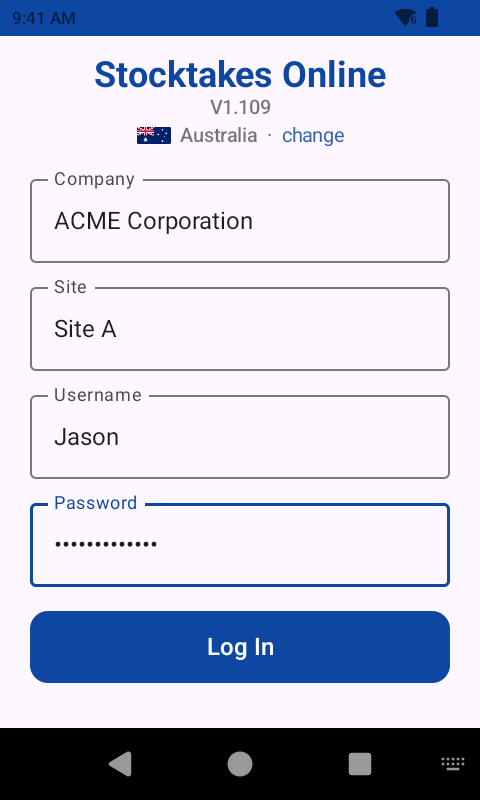
The Stocktake app login screen, with company, site, username and password filled in
01 · Sign inCompany, site and username. All four fields can be scanned off a card instead of typed.
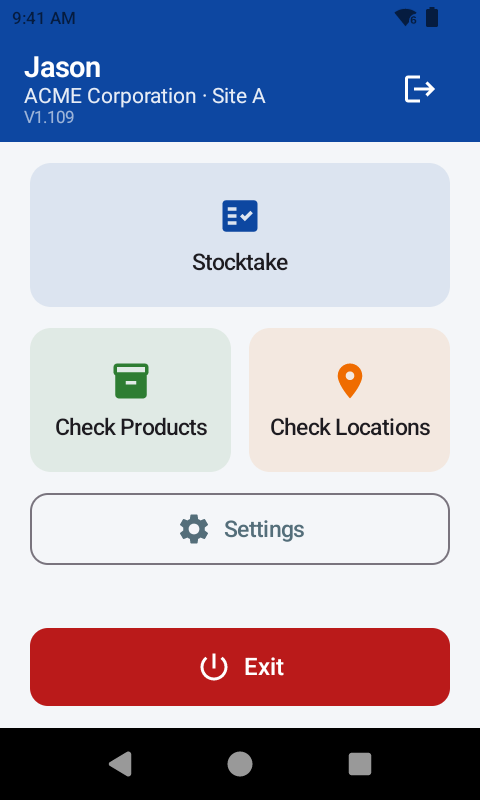
The app's main menu: Stocktake, Check Products, Check Locations, Settings and Exit
02 · Three choicesCount, or look up a part or a location. Nothing else, because nothing else belongs on a scanner.
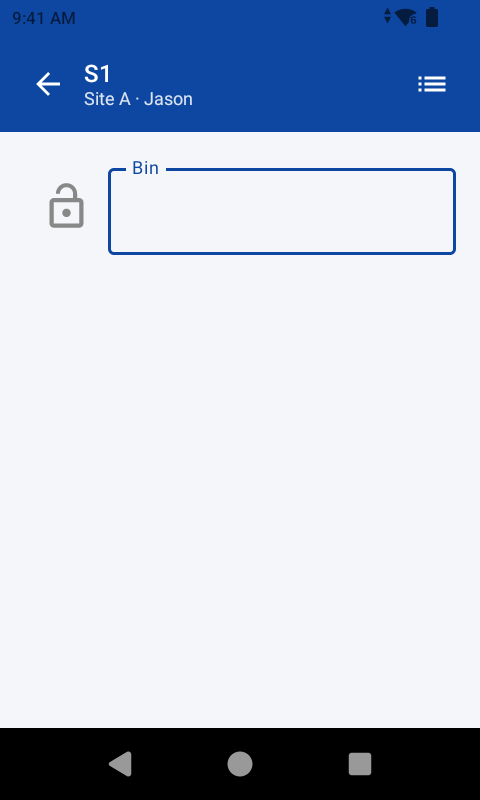
The scan a bin location screen, with an empty entry field
03 · Scan the binWhere am I standing. The code is checked against the site's locations before the app moves on.
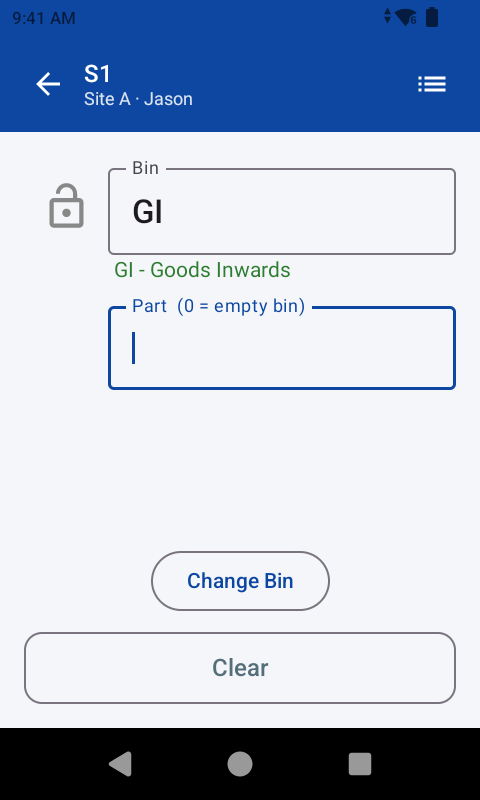
The scan a part screen, with bin GI accepted and named Goods Inwards, and the part box waiting
04 · Scan the partWhat is in my hand. The bin stays on screen, so nobody loses track of where they are.
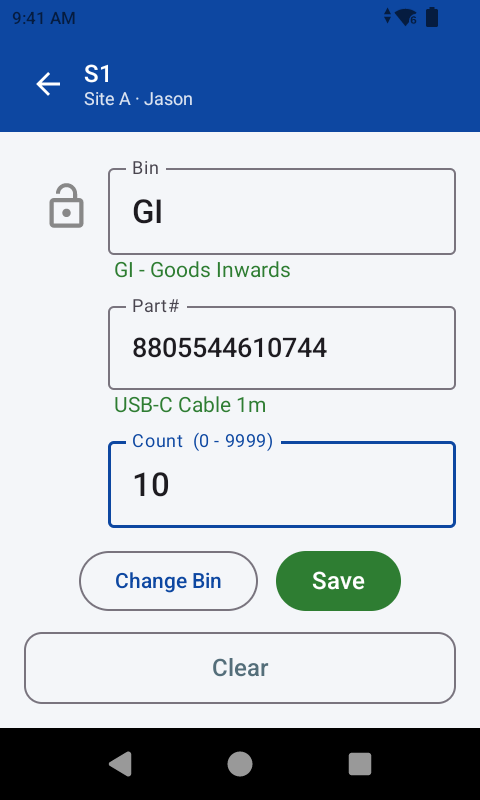
Bin GI, a scanned part barcode named back as USB-C Cable 1m, and a count of 10 ready to save
05 · How manyThe app names the part back before anything is saved — the last chance to notice a wrong scan.
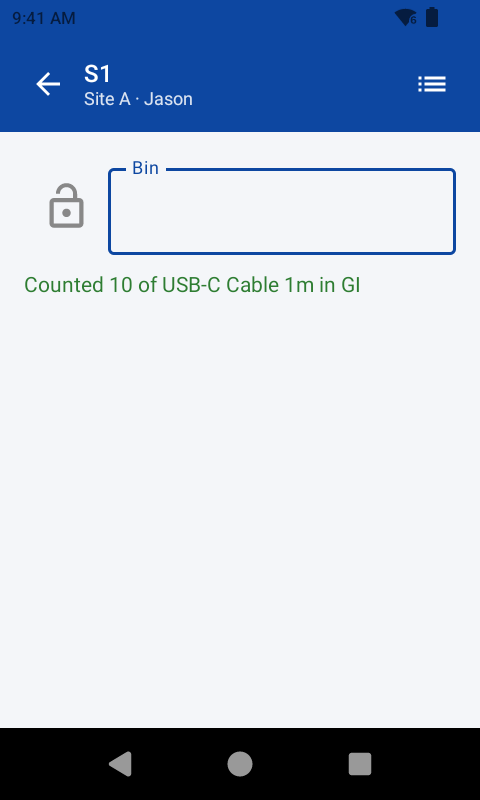
Back at the empty bin box, confirming Counted 10 of USB-C Cable 1m in GI
06 · BankedOn the portal already. Same screen as 03, now with the count under it — and round again.

Real screens from an MC3400, counting our demonstration site. What an operator actually does →

SCAN / COUNT

The normal way

Scan the bin, scan the part, key the quantity. Lock the bin and the operator stays in that bay, working through it line by line without re-scanning the location each time. Part number 0 marks a bin as empty — checked, and holding nothing, which is a different fact from never having been visited.

SCAN / INCREMENT

For rails and bulk

Every scan counts one, with no quantity step at all. Four scans of the same garment are four records of one, so a mis-scan is a single line to delete rather than a total to unpick. Type a number and it replaces the count on the scan you just made — “there are plainly twelve of these” — without touching the rest.

CHECK

What is this, and where have I seen it?

Scan any part or bin to see what it is. If a stocktake is running, it also shows where you have counted that part, or what you have counted in that bin — with descriptions, not just numbers. These work whether or not a count is under way, because a description lookup is useful regardless.

CORRECTIONS

Fix your own mistakes, and only your own

An operator can amend or withdraw counts they made themselves. Somebody else's are invisible to them. A withdrawn count leaves every total immediately, but the record stays for an administrator to see — a figure that vanished without trace is the one thing nobody could look into afterwards.

The decision behind it

Why the device holds nothing.

Most stocktake apps keep a copy of your data on the scanner and sync it later. It sounds safer. It isn't. It means the count on the device and the count in the system disagree for a while, and nobody knows which is right until the sync finishes — if it finishes.

Stocktakes Online does the opposite. Every lookup and every count is a live call to the portal. A count that did not arrive has not been recorded, and the operator is told immediately, while they are still standing at the rack and can do something about it.

The trade is honest: this needs wifi where you count. Prove it before you buy — take the printable check sheet into the aisles and load the portal on a scanner at the far end of the racking. Where that page comes up, the scanner will count. Where it does not, you want to know now and not on the day.

What you get for it is a system with one version of the truth, at every moment, for everyone looking at it.

The awkward cases

Real warehouses are not tidy. Nor is the software.

The same part, twice in one bin

A bay can be big enough that the same item sits in two places ten metres apart. Both piles get counted where they are found, and both counts stand. When an operator counts a part they have already counted in that bin, the device asks: is this a second pile, or a correction to the first?

Two people, one bay

Both counts stand, separately. That is a discrepancy worth seeing on a report, not something for the software to quietly average away.

A code that isn't yours

Refused at the shelf, with the reason on screen. The portal holds many companies and every lookup is scoped to yours, so another client's part number is simply not a part number here.

Want to see it against your own data?

Send us a parts file and a bin list and we will load them into a demonstration account, so you are looking at your warehouse rather than ours.

Talk to us